Your first article, step by step
This is the full path, from an empty project to your first article on the site. There are 8 steps. You do the first 3 once per plan; the others repeat for every article.
Before you start#
Check that these 3 things are already in place. Each one has its own page, with the steps:
-
The plugin installed and active in your WordPress. See Install the plugin.
-
You are signed in with a PRO account, through the Sign in with jode.io button. Planning and generating articles is PRO. See Sign in with jode.io.
-
Your Anthropic key saved and tested in Global Settings. It writes the briefings and the articles. If you will use AI images, save the OpenAI key too. See AI keys and costs.
The 8 steps#
In the example, an agency creates the first article for a law firm: the project Silva Law Firm, the plan Termination, season 1, and the theme Just cause for job abandonment.
-
1
Create a projectOnce
Open the Projects tab and click New root project. Give it a name, such as the client's name, and click Create. Then pick the project in the project switcher at the top of the screen: everything you do next lives inside it.
Silva Law Firm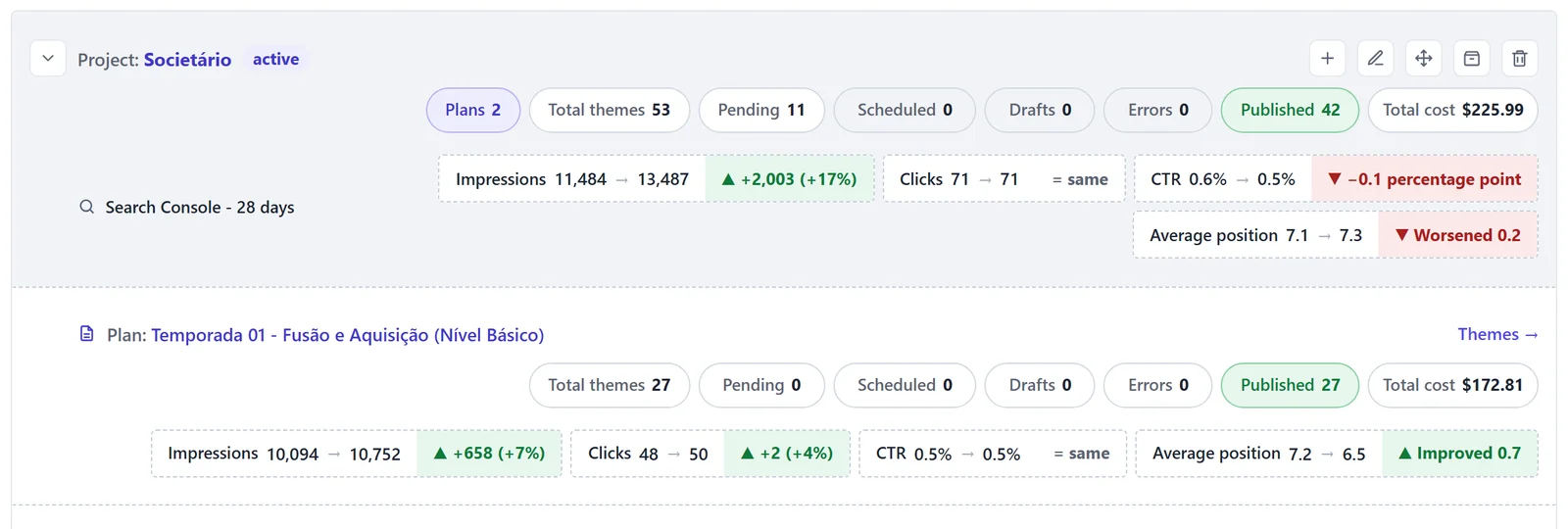
The Projects tab: each project with its plans and their numbers. -
2
Create a WP planOnce
Open the Editorial Planning WP tab. In the New plan card, type the Plan name and click Create plan. The plan only asks for a name and starts empty: the themes come later. In the plan list, click Themes → to open the plan's screen.
Termination, season 1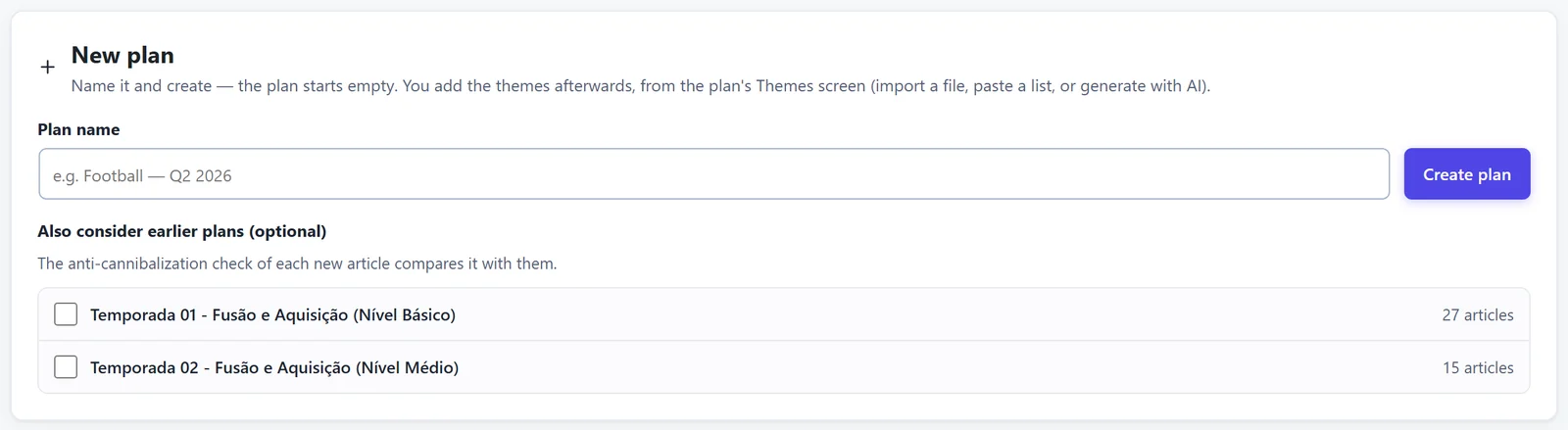
The New plan card: just the name, and the plan starts empty. -
3
Fill in the 3 required settingsOnce
On the plan's screen, under Plan settings, 3 cards carry a red alert until they are filled in. Once they are ready, the alert turns into a green check:
- Editorial prompt: the Target audience (who the article is written for), the Main profile (the content's field, such as Jurídico or Saúde) and the Publishing entity (who signs the content, such as the law firm).
- Categories / Tags: the plan's Default category. The plugin never creates a category: pick one that already exists on the site.
- Primary author: the WordPress author of the articles. With Schema Rank active on the site, also pick the Schema Rank author.
While any of them is missing, the Generate button and the schedule stay locked, and the message says what is missing, for example "Choose a default category.".
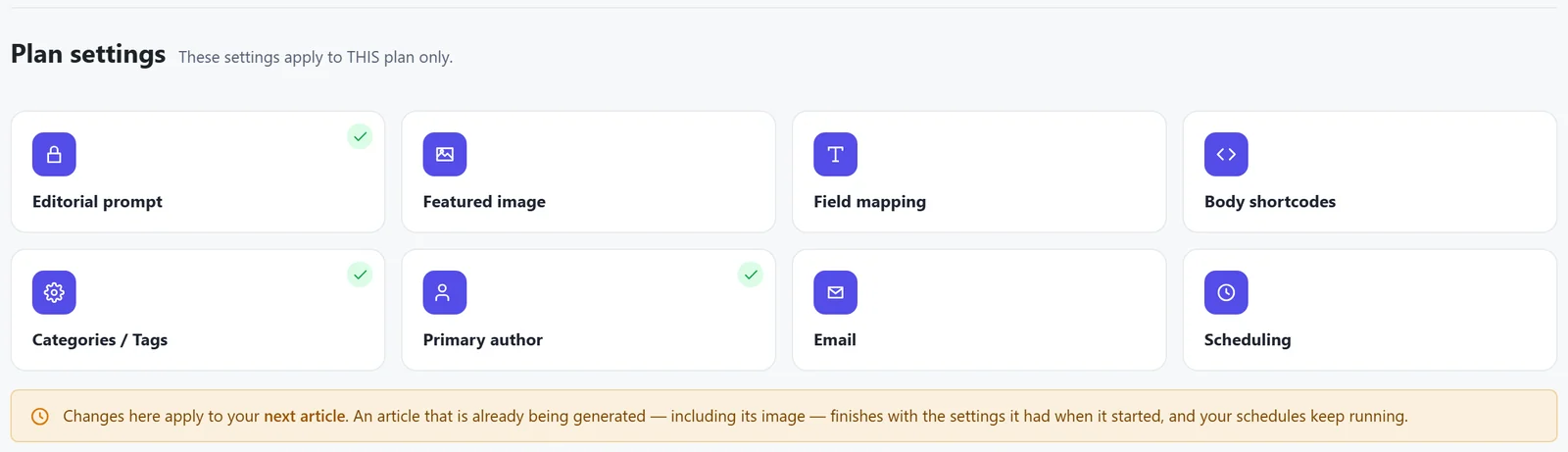
The Plan settings cards. The green tick shows what is already filled in. -
4
Add the themesWhenever you like
In the Themes for blog card, click Add themes and choose one of the 3 ways: Generate themes (AI builds the plan from a central theme), Import themes (your spreadsheet) or Insert manually (one title per line). For a first test, type 2 or 3 titles by hand.
Now wait a little. Each theme only enters the list with its briefing ready, written by AI comparing it with every other theme in the plan. Meanwhile, the Themes being added box shows the progress. You can close the page: the work goes on.
Just cause for job abandonment
The Themes for blog card, where the 3 ways to add themes start. -
5
Review the briefingFor each theme
On the theme card, click Edit briefing. Check 3 fields: the Main Keyword (the search the article wants to win), the Micro-Question (the exact question it answers) and the Anti-Cannibalization Note (what it goes deep on and what it leaves to neighbouring themes). Fix anything you like and save.
Every briefing field is explained in Themes and briefings.

The Edit theme briefing window, with the AI model, the title and the briefing fields. -
6
Generate the articleFor each theme
Click Generate on the theme card. The Generate this article window opens, where you choose how the article goes into WordPress: Publish (goes live at the end) or Draft (waits for review). Draft is the default. For your first article, leave it that way.
-
7
Follow it on the cardA few minutes
The theme card shows each step while it runs: competitor research, anti-cannibalization, writing, image. You can leave the page; the generation carries on. At the end, the card's Generation history shows what each step cost.
What each step does is in Article generation.
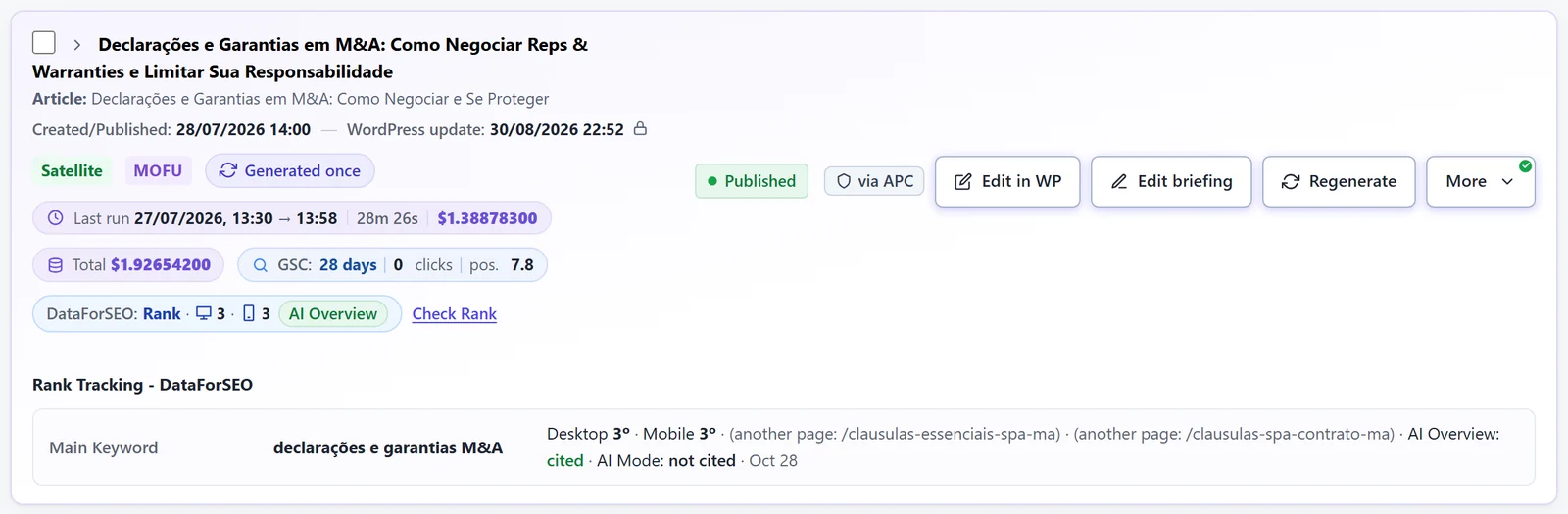
The theme card after generation: status, cost of the last run and in total, Search Console and Google position. -
8
Review and publishFor each article
Open the draft from the card (View article or Edit in WP), read it, adjust what you like and publish. If the client needs to approve first, send the draft to client review. The publishing options are in Publishing.
How to know it worked#
-
The theme card shows the new status (draft or published) and the cost of the generation.
-
The post shows up in the WordPress Posts list, with the plan's category and author.
-
The SEO fields are filled in in your SEO plugin (Yoast, Rank Math, AIOSEO or SEOPress): SEO title, meta description and the keyword.
-
The main keyword is in the excerpt and the first paragraph, and the featured image is on the post, if the plan makes AI images.
If something goes wrong#
The Generate button is locked.
A required plan setting is missing. The message near the button and the card with the red alert say which one. It also locks when a step that is turned on needs a key that is not saved or was refused, for example AI images without the OpenAI key.
The themes don't show up in the list.
They come in only once each briefing is ready; this can take a few minutes. If the red Themes not added box shows up, it gives the reason for each theme and offers the Try again and Discard buttons.
A step failed.
The theme card says which step failed, why, and what to do. An incomplete article never goes live on its own. See Article generation.