Settings
What lives in Global Settings and in Advanced: the AI keys, the output language, the LinkedIn connection, the modules, the cost ceilings, the support log, export and import and what happens to your data when you delete the plugin.
On this page
Where they are#
There are 2 screens in the plugin's menu, and both apply to the whole installation, across every project:
- Global Settings: keys, output language, LinkedIn, modules, cost ceilings, environment and log.
- Advanced: export and import settings, and the choice about your data on uninstall.
What belongs to each plan (editorial prompt, AI models, image, category, authors, scheduling) lives in the plan itself, not here. See Projects and plans.
What each person sees
- FREE In Global Settings, only the Modules card, with the switches of the Free tools. In Advanced, export and import of the Free settings, and uninstall.
- PRO Every card described on this page.
Changing a setting never spoils what is already being generated. The article in progress, with its image, finishes with what was set when it started. The new value applies from the next article on, and your schedules keep running.
API keys#
At the top of Global Settings sit the cards for each provider: Anthropic, OpenAI and Perplexity on one row; Jurisprudências.ai and DataForSEO on the other. In each card you paste the key, click Test connection and Save API key. The Where do I get this key? link opens the right page at the provider.
- Models always up to date. The model lists are checked on their own every day. Check for new models, on the Anthropic and OpenAI cards, checks right away.
- Prices. Update price table opens the table used to work out the cost of each step. Keep the values current so the recorded cost matches your bill.
- DataForSEO. It uses API login and API password instead of a key; the API password is not the password you use to sign in to the DataForSEO site. The card shows the account balance. At its end sits Rank Tracking: automatic check, with how often positions are checked (see SEO and performance).
What each key is for, which ones are required, where to create them and what an article costs: AI keys and costs.
Never treated as competitors#
Government sites, courts, professional councils and Wikipedia inform your reader, but they don't compete with your article for that reader. That is why competitor research skips the sites on this list, both in Google's top 10 and in Anthropic's search.
- The default list comes ready: the worldwide entries plus those for the site's language.
- One site per line. * matches any run of letters or digits within one part of the name (between dots); ? matches exactly one letter or digit; !site.com never excludes that site.
- The card says whether the default list or yours is in use, and Restore the default list undoes your changes.
Output language#
The language of everything the plugin generates: themes, briefings, articles, SEO fields, LinkedIn posts and even the text inside the featured image. Empty, the WordPress site's language applies. There is one for the whole installation; it doesn't change per project.
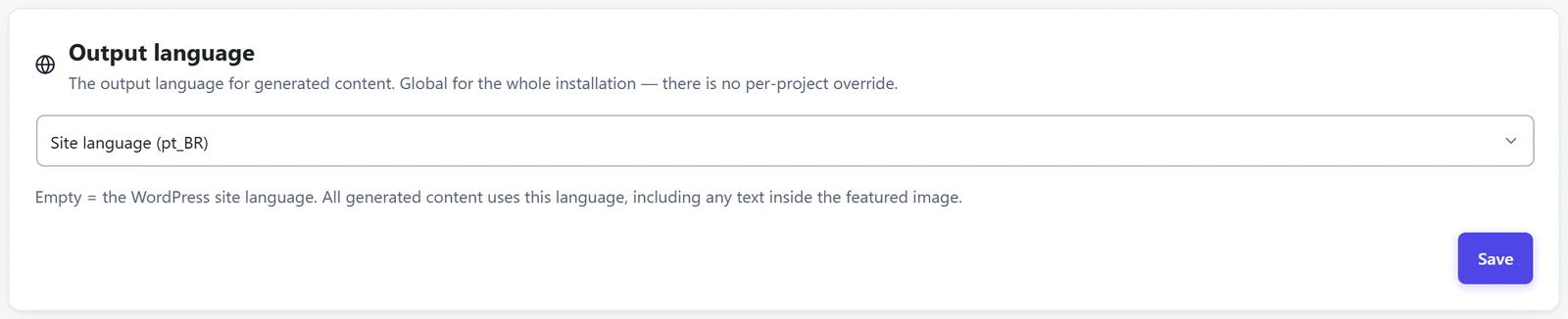
The language you use the dashboard in makes no difference: someone who sees the plugin in English generates articles in Portuguese if the output language is Portuguese.
LinkedIn#
The LinkedIn connection and LinkedIn profiles cards connect the site to LinkedIn and each profile to a WordPress author. The step by step to create the app and connect the authors is in LinkedIn.
Modules#
The Modules card turns each part of the plugin on and off for the whole site. A module that is off disappears from the menu and stops working everywhere in WordPress. After changing the switches, click Save.
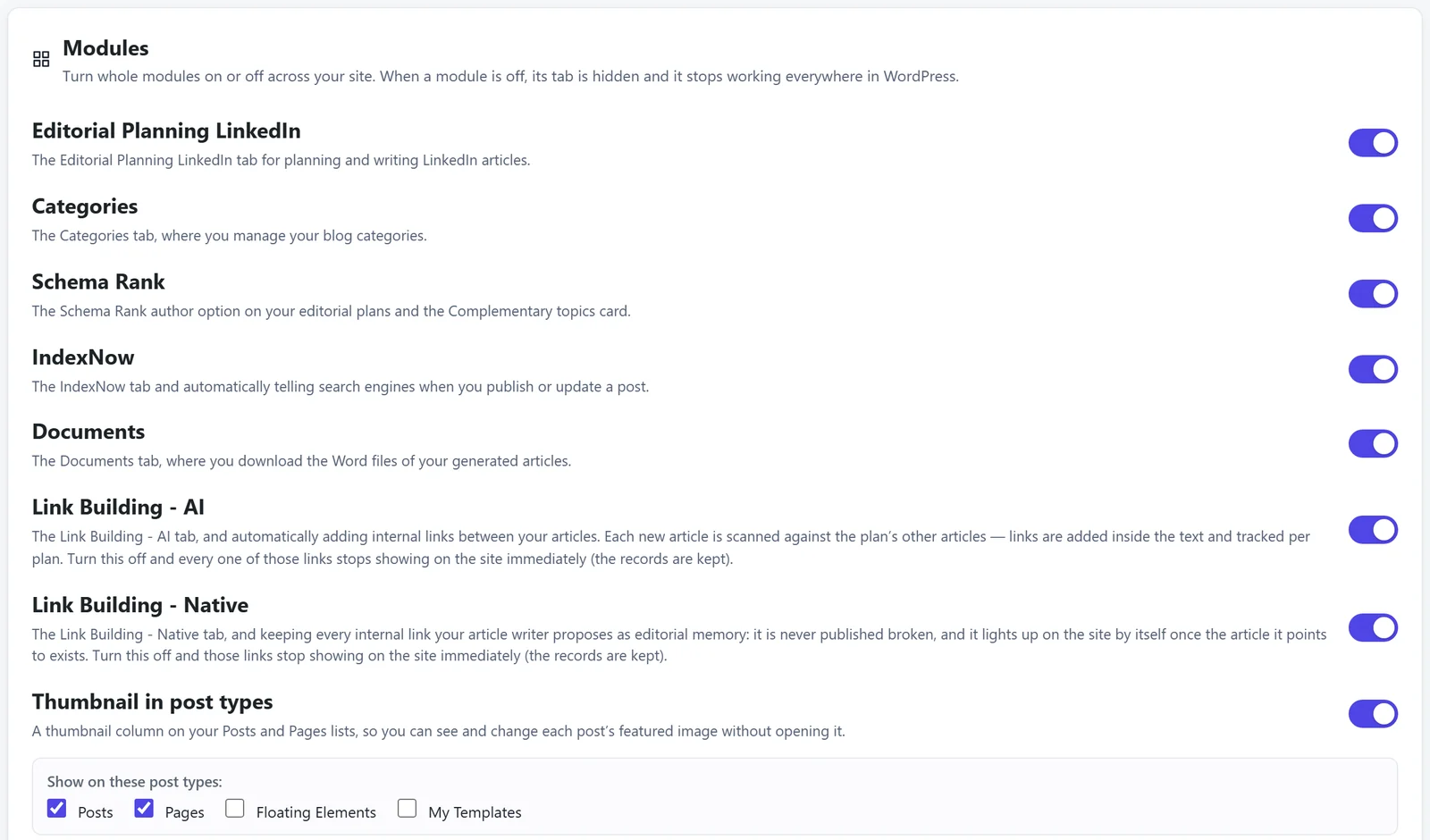
The switches of the PRO modules follow the site's plan: when you subscribe to PRO, they all turn on by themselves; if the site stops being PRO, they turn off and come back as they were when it is PRO again. What each module does and which ones to turn on first: Turn on the modules.
Cost ceiling#
A monthly spending limit per provider: Anthropic (text), OpenAI (images) and Perplexity (case research). In Spend limit (USD), empty means no limit. Under Action when the ceiling is hit, choose Pause queue or Alert only.
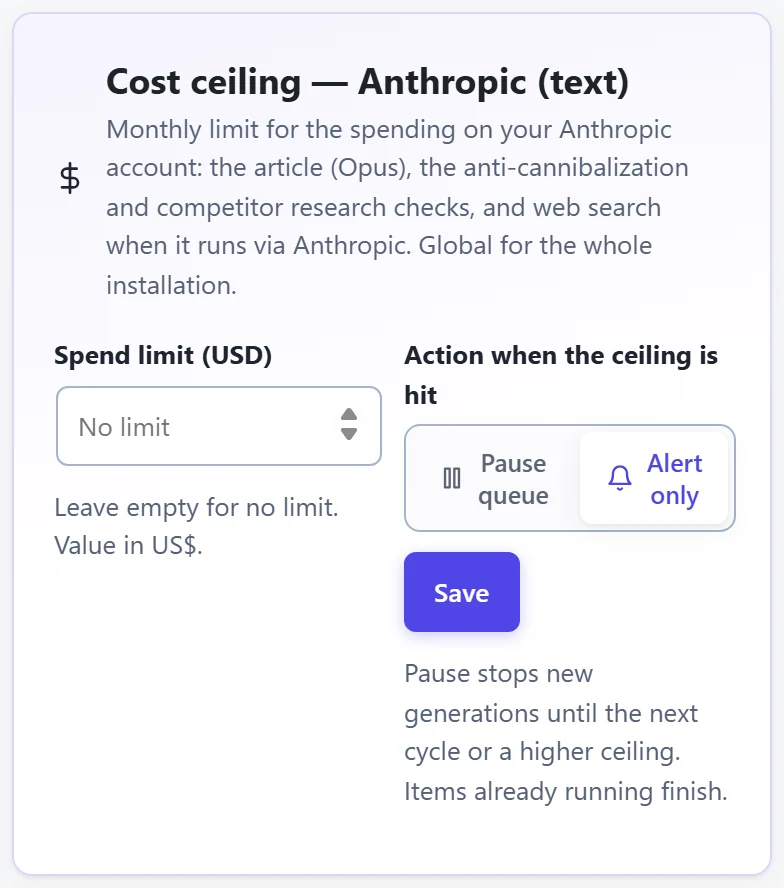
Pausing stops new generations; whatever is already running finishes. The ceiling never shortens the text or swaps the model for a weaker one. How to follow what each article costs: AI keys and costs.
Environment (detected)#
A read-only card with what the plugin found on the site: the SEO plugin, Schema Rank, ACF, the cache plugin and the redirect plugin. It is where you check where the SEO fields go (Yoast, Rank Math, All in One SEO or SEOPress) and who creates the 301 redirect when an article's address changes. With no redirect plugin, WordPress redirects on its own, where the site's permalink settings allow it.
Activity log (support)#
Every step of every generation is recorded, with costs and errors, always: it cannot be turned off. When something doesn't go as expected, click Copy support log and send it with your message. API keys never go into the log. How to ask for help: Support.
Export and import#
In Advanced › Export & import settings, you save the global settings to a file and load that file on another site to set it up the same way. Great for an agency that sets up several sites alike.
-
1
Export on the source site
Click Export settings. The What gets exported table, right below, shows every group that goes into the file.
-
2
Import on the new site
Choose the file and click Import. The matching settings on this site are replaced by the ones in the file.
- Settings only. Projects, plans, themes and articles don't go into the file.
- On Free, the file carries only what is Free: Image Converter, modules on/off, IndexNow, the report brand (the logo is chosen again on the new site) and the uninstall choice.
- On PRO, the file also carries the Anthropic, OpenAI and Perplexity keys, to set up the other site completely. Keep the file somewhere safe: anyone who opens it can read those keys. The DataForSEO access never goes into the file; type it again on the new site.
- The connection stays as it is. Importing a file never changes the site's link to your jode.io account.
Uninstall#
In Advanced › Uninstall, the Delete all data when the plugin is deleted switch decides what happens to your data when you delete the plugin on the WordPress Plugins screen.
- Off (the default): deleting the plugin keeps everything, and reinstalling brings back projects, plans, themes and settings.
- On: when you delete the plugin, its data goes: projects, plans, themes, histories, settings and the plugin's notes on posts. Posts, pages and images stay on the site, as do the fields of the SEO plugin, Schema Rank, Elementor and your own custom fields.
Turning the switch on deletes nothing right away. Deletion only happens when the plugin is deleted; deactivating the plugin never deletes data.